
Starter Sites are a Pro feature in Strakture. They give you a faster way to launch a complete website by importing a ready-made demo and its supporting setup.
What Starter Sites Include
A Starter Site can include:
- a compatible child theme
- demo pages and content
- templates and navigation
- required or recommended plugins
- WooCommerce setup when the demo supports it
This helps you start from a complete site structure instead of building everything manually.
Before You Start
Before importing a Starter Site:
- make sure Strakture Pro is active
- choose the demo you want to use
- be ready to activate the matching theme
- install any required plugins during the setup wizard
If you are importing on an existing site, it is a good idea to back up your content first.
Step 1: Activate the Theme
Starter Sites are designed to work with their matching theme setup.
To begin:
- Open Strakture in your WordPress admin.
- Go to the Starter Sites area.
- Choose the demo you want to import.
- Activate the suggested child theme if it is not already active.
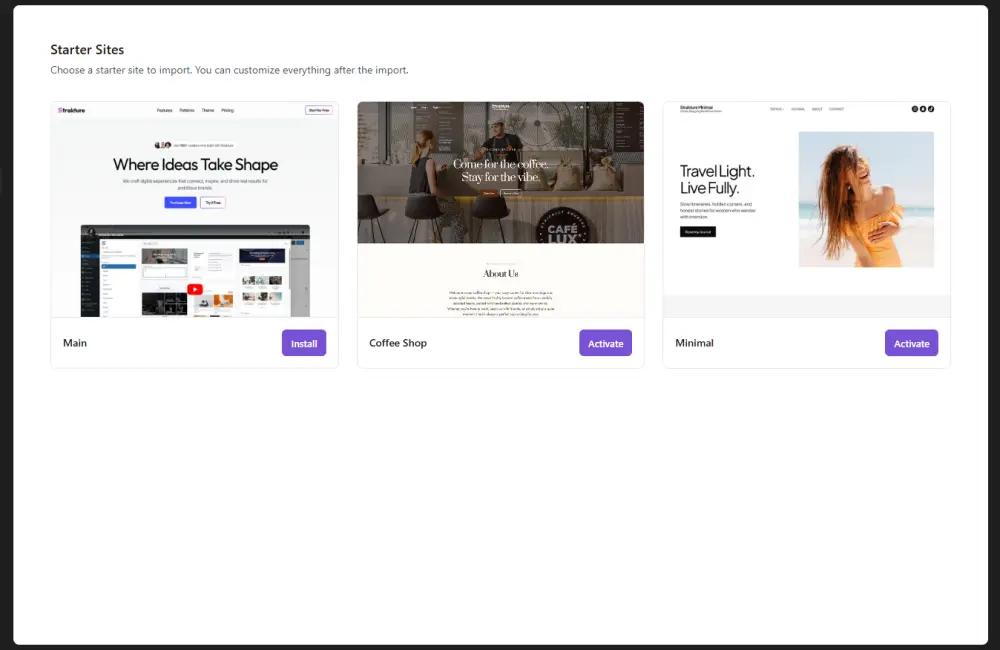
After activation, you can continue to the import wizard.
Step 2: Install Plugins
During the wizard, Strakture will prompt you to install the plugins needed for the demo.
- Select recommended plugins in the the wizard.
- Click Install.
- Wait for the required plugins to finish installing.
- Continue to the next step of the wizard.
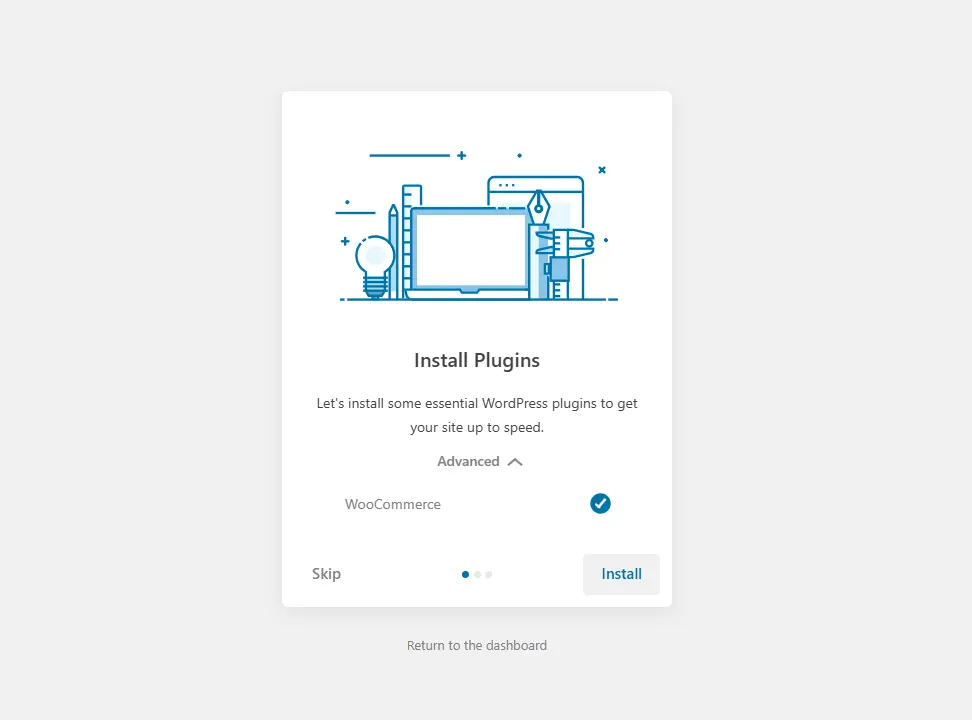
This helps make sure the imported site works correctly after setup.
Step 3: Start the Demo Import
Once the plugins are installed and active, click the Import button and wait for the process to finish.
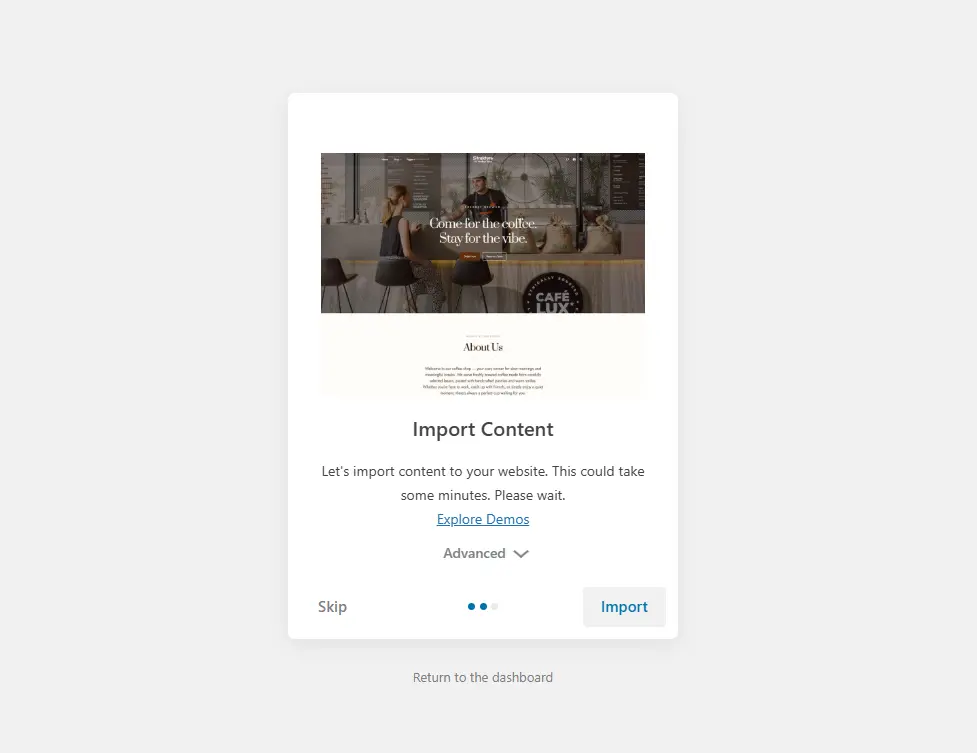
The import may take a few minutes, depending on your hosting environment.
What Happens After Import
After the import finishes, Strakture can automatically handle important setup tasks such as:
- assigning the front page and blog page
- reassigning templates to the active theme
- updating navigation links
- assigning WooCommerce pages when WooCommerce is active
That means you can usually start editing right away instead of doing extra setup manually.
After Import
Once your Starter Site is ready:
- Review the imported pages and templates.
- Replace demo content with your own text and images.
- Adjust colors, fonts, and site settings if needed.
- Open the Pattern Library to add or generate more sections.
Starter Sites are meant to give you a strong starting point, not lock you into a fixed design.
Tips for a Smooth Import
- Import on a clean or low-risk site when possible.
- Let the wizard finish without refreshing the page.
- Install the suggested plugins during setup.
- Check your homepage, blog page, and navigation after import.
- If the demo includes WooCommerce, confirm that shop-related pages are assigned correctly.