
Customize with AI lets you update any selected block or pattern using a simple text prompt. Instead of editing every detail manually, you can describe the changes you want and let Strakture apply them for you.
What Customize with AI Does
With Customize with AI, you can select a block or pattern and ask Strakture to make targeted changes, such as:
- Rewriting the copy
- Replacing images
- Adjusting colors
- Changing the tone to better match your niche
- Making the section feel more cohesive with the rest of the page
This makes it much faster to adapt existing content without rebuilding it from scratch.
How It Works
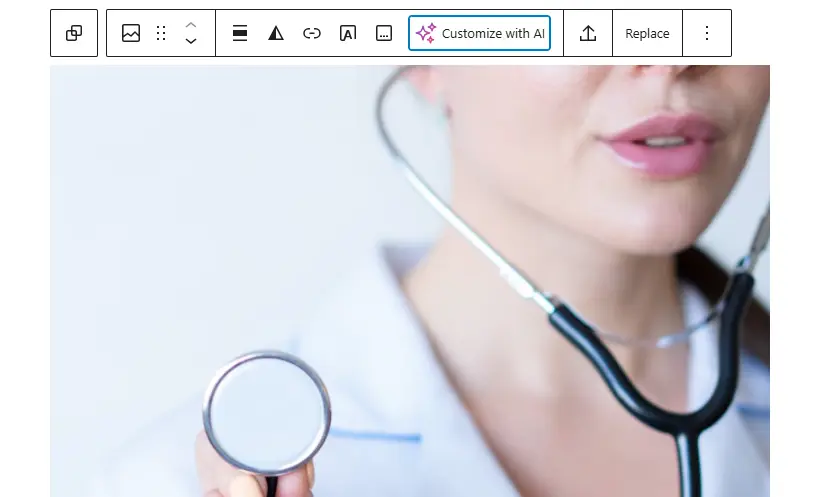
- Select any block or pattern in the editor.
- Click Customize with AI.
- A modal will open with a customization prompt field.
- Describe what you want to change.
- Click Customize with AI to apply the update.
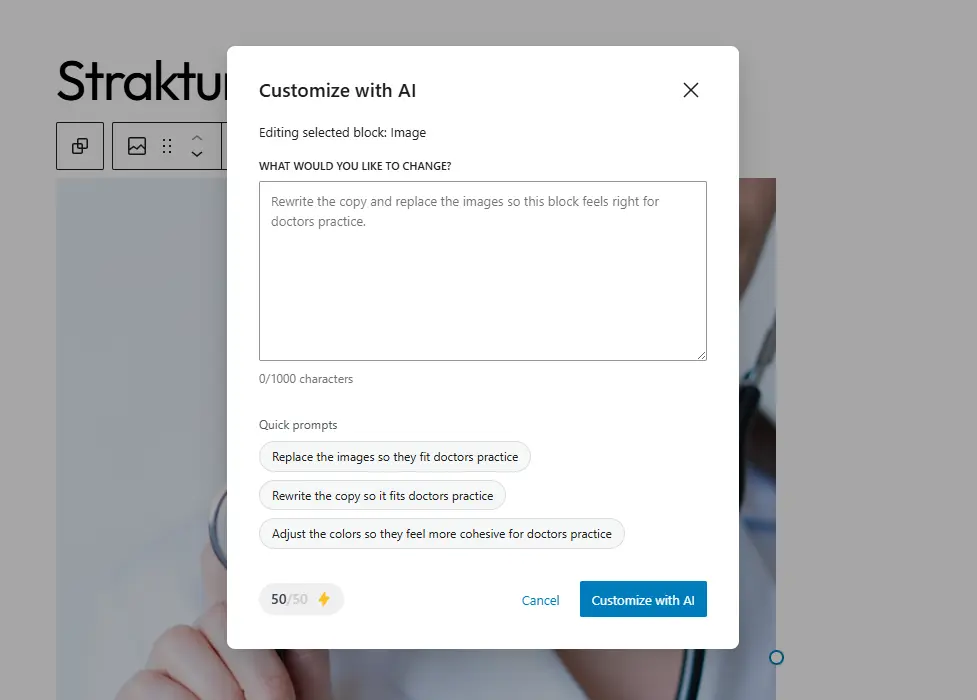
The modal also includes quick prompt suggestions to help you get started faster.
What You Can Ask AI to Change
Customize with AI works best when your request is clear and specific.
You can ask it to:
- Replace the images so they fit your site type
- Rewrite the copy for a different audience or tone
- Make the colors feel more cohesive
- Update the content to fit a specific industry
- Refine a section without changing the overall layout too much
Example requests:
Rewrite the copy and replace the images so this block feels right for a doctors practice.Replace the images with something more relevant for a restaurant website.Rewrite this section so it sounds more premium and confident.Adjust the colors so they feel more cohesive for a law firm website.Keep the structure, but make the copy shorter and clearer.
Best Use Cases
Customize with AI is especially useful when:
- a pattern layout is correct but the content feels generic
- the images do not fit your business
- the copy needs to match a different audience
- the block feels visually disconnected from the rest of the page
- you want faster iteration without manual rewriting
Tips for Better Results
- Be specific about what should change.
- Mention your business or site type when relevant.
- Ask for one or two focused improvements instead of too many changes at once.
- If you like the structure, say so directly, for example:
Keep the layout, but rewrite the copy and replace the images. - If needed, run another customization pass with a clearer prompt.
Why Site Context Matters
Customize with AI works better when Strakture understands what your site is about. If your site type is already set, the results can feel much more relevant and on-brand.
For example:
- a healthcare site may need more trustworthy and professional wording
- a restaurant may need warmer imagery and more inviting copy
- a SaaS site may need sharper headlines and cleaner visual direction
Quick Prompt Ideas
Replace the images so they fit my business better.Rewrite the copy so it feels more professional.Adjust the colors so this block feels more cohesive.Make this section fit a doctors practice.Keep the layout, but make the messaging clearer and more modern.
Before You Customize
- make sure you have selected the correct block or pattern
- review the prompt before submitting
- keep your request clear and direct
- make sure your site type is set if you want more relevant output
Customize with AI is designed to help you improve existing blocks quickly, so you can spend less time editing and more time building.