
The WordPress block editor is where you build almost everything on a modern WordPress site: posts, pages, and full layouts. It replaced the old text box with a system of movable blocks. Once it clicks, editing feels faster and far more visual.
New users often find it confusing at first. Where did the old editor go? Why is everything a block?
This guide walks through the essentials: how blocks work, the tools you will use daily, and how patterns turn a blank page into a finished layout in minutes.
How the WordPress Block Editor Works
What actually changed when WordPress moved to the block editor? Everything became a block. In the WordPress block editor, each paragraph, heading, image, and button is a separate unit you can move, style, and reuse.
This system is called Gutenberg, named after the printing pioneer. Instead of one long text field, you stack blocks to build a page. Each block has its own settings for color, spacing, and alignment.
The payoff is control without code. You can drop a two-column layout, a cover image, or a call-to-action button into place, then adjust it visually. No HTML, no shortcodes, no guesswork about how it will look.
The Tools You Will Use Every Day
A handful of controls do most of the work. Learn these four and the editor stops feeling foreign.
- The inserter: the blue plus icon that opens the full block and pattern library
- The block toolbar: floating controls for alignment, bold, links, and block type
- The settings sidebar: color, typography, and spacing options for the selected block
- The List View: an outline of every block, handy for selecting and reordering
Two shortcuts save real time. Type a forward slash, then a block name, to insert without opening the inserter. Press the List View icon in the top toolbar whenever a page gets crowded and you lose track of your structure.
One block deserves special mention: the Group block. It wraps several blocks into a container you can style and move together, which is how most layouts stay organized. Reach for it whenever you want a shared background color or consistent spacing across a whole section.
Building a Page With Blocks and Patterns
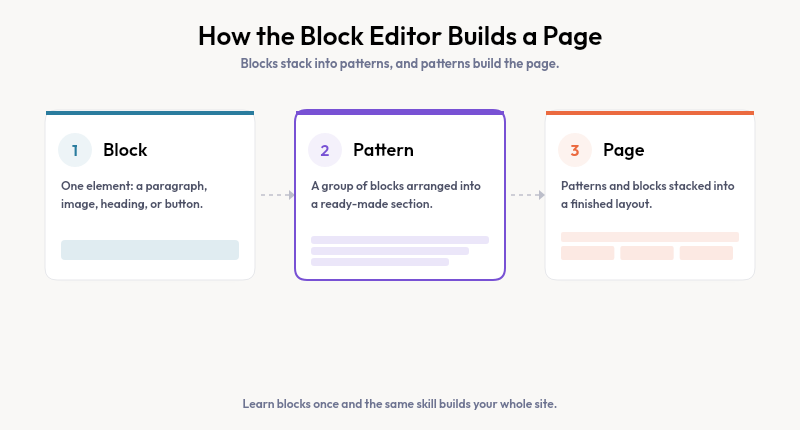
Starting from an empty page is the slowest way to work. Patterns fix that. A pattern is a group of blocks arranged into a ready-made section, like a hero, a pricing table, or a testimonial row.
Open the inserter, switch to the Patterns tab, and browse by category. Click one and it lands on your page fully built. From there you swap the text and images while the layout stays intact.
You can also save your own. Select several blocks, choose Create Pattern, and reuse that section anywhere. The synced pattern feature even updates every copy at once when you edit the original.
Blocks, Patterns, and Full Site Editing
People mix these terms up constantly, so here is the quick version. A block is one element. A pattern is a group of blocks. Full Site Editing extends both to your whole site.
With a block theme, the Site Editor lets you edit headers and footers, plus templates, using the same blocks you already know. The skill you build writing a post carries straight over to designing your entire layout.
Getting More From Patterns
The weak spot of built-in block patterns is fit. Insert one from a generic library and the colors, fonts, and spacing often clash with your theme, so you spend time fixing what should have saved it.
Strakture solves that inside the block editor. It reads your theme’s design system, then generates patterns that already match your colors, typography, and spacing. You get finished sections that look native from the first insert.
Start Building With Confidence
The WordPress block editor rewards a little practice. Learn the inserter, the toolbar, the sidebar, and List View, then lean on patterns to move fast. Blocks give you control, and patterns give you speed.
When generic patterns fight your theme, Strakture generates ones that fit it automatically, so you spend your time on content instead of cleanup.
What is the WordPress block editor?
The WordPress block editor, also called Gutenberg, is the default tool for creating posts and pages. It builds content from individual blocks like paragraphs, images, and buttons. Each block can be moved, styled, and reused, which makes visual editing possible without writing any code.
How do I use the block editor in WordPress?
Click the plus inserter to add a block, then use the floating toolbar and settings sidebar to style it. Type a forward slash to insert blocks quickly. Open List View to see and reorder your structure. Use the Patterns tab to drop in ready-made sections.
What is the difference between blocks and patterns?
A block is a single element, such as a heading or image. A pattern is a group of blocks arranged into a full section, like a hero or pricing table. Patterns save time because they insert a complete, pre-built layout you only need to edit.
Can I switch back to the classic editor?
Yes, the free Classic Editor plugin restores the old interface. Most users adjust to the block editor within a few sessions, though, since it offers far more layout control. Support for the Classic Editor plugin is planned to continue while many sites still rely on it.

Leave a Reply