
Learning how to edit the header and footer in WordPress is one of the first skills every site owner needs. Your header holds the logo, the main menu, and the first impression visitors form in seconds. The footer carries copyright, contact details, and the links people reach for last.
Where you change these areas depends on your theme. Block themes use the Site Editor and template parts. Classic themes use the Customizer or theme files. This guide covers both paths with clear steps for the current WordPress 6.x interface.
By the end, you will know how to update navigation, swap a logo, add a button, drop in patterns, and fix the usual reasons your edits refuse to appear.
Where to Edit the Header and Footer in WordPress
First, figure out which kind of theme you run. That single fact decides every step that follows.
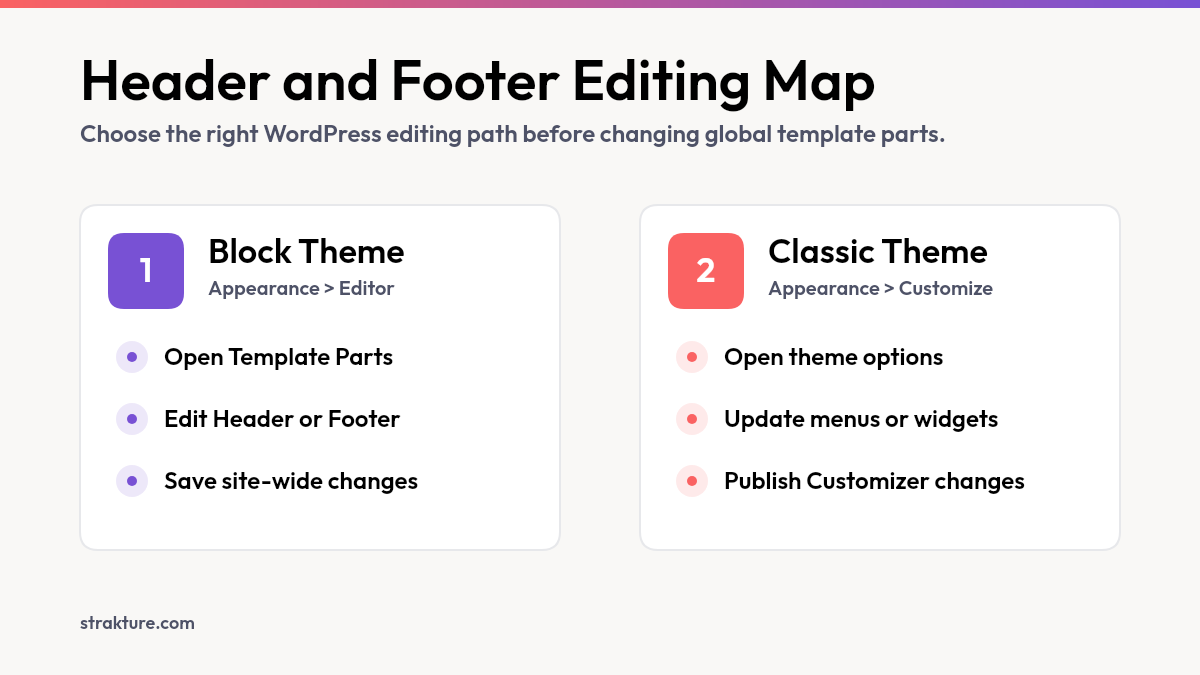
Open your dashboard and look under Appearance. If you see an Editor link, you have a block theme, and the Site Editor controls both areas. If you see Customize instead, you run a classic theme, and the Customizer or your theme options handle the work. Default themes like Twenty Twenty-Four and Twenty Twenty-Five ship as block themes.
The table below shows where each task lives in both systems, so you can jump straight to the right screen.
| Task | Block theme | Classic theme |
|---|---|---|
| Open the editor | Appearance > Editor | Appearance > Customize |
| Edit the header | Patterns > Template Parts > Header | Customizer or theme header builder |
| Edit the footer | Patterns > Template Parts > Footer | Customizer, widgets, or footer builder |
| Edit the menu | Navigation block or Navigation screen | Appearance > Menus |
| Where it applies | Site-wide after save | Site-wide after save |
How to Edit the Header Template Part
Five clicks stand between you and a finished header. Here is the exact path in a block theme.
- Go to Appearance, then Editor, from your dashboard.
- Click Patterns in the sidebar, then open Template Parts.
- Select Header, then click the design to open it for editing.
- Click any block to change it, or use the plus inserter to add a new one.
- Click Save in the top right to publish your changes.
Each block in the header is editable on its own. Click the logo to swap it, click the menu to change links, or use the inserter to add something fresh. The header is a wordpress header template part, which means one edit updates every page that uses it. For a full reference, the WordPress.org Site Editor Patterns documentation covers template parts in detail.
Add or Replace Navigation, Logo, and Buttons
The Navigation block runs your menu. Click it, then add or remove pages with the plus icon, or drag items to reorder them. You can manage the same menu from the Navigation screen in the Site Editor sidebar.
The Site Logo block controls branding. Select it, click Replace, and upload a new image. A Site Title block sits nearby if you prefer text. To add a call to action, insert a Buttons block and point it at your contact or pricing page.
How to Edit the Footer in WordPress
Most visitors who scroll to the bottom want one thing, a reason to trust you or a way to get in touch. A tidy footer answers both.
To edit the footer in WordPress, the steps mirror the header. When you edit the header and footer in WordPress from template parts, one saved change can apply across the whole site. Go to Appearance, then Editor, open Patterns, and select Template Parts. Choose Footer and click to open it. From here you can rewrite the copyright line, refresh social icons, adjust columns, or add a small menu.
Many themes store the year and site name with a dynamic block, so you rarely type the year by hand. When you edit wp footer content this way, the update reaches the whole site the moment you save. The Learn WordPress lesson on creating and customizing a header and footer adds a short video walkthrough.
Using Patterns Inside Your Header and Footer
What if you could drop a polished announcement bar into your header in a single move? Patterns make that possible.
Patterns are pre-built groups of blocks. Inside any template part, click the plus inserter, open the Patterns tab, and pick one. It lands ready to edit. This approach suits header banners, footer link columns, newsletter sign-ups, and call-to-action rows. You can pair a header banner with a strong WordPress hero section right below it.
The trouble with most pattern libraries is fit. A generic pattern often clashes with your colors and fonts. Strakture takes a different route. It reads your active block theme’s design system, then generates block patterns that match your colors, spacing, and typography, so a banner or CTA you drop into a header or footer template part looks native instead of bolted on. Our guide to building with reusable WordPress block patterns goes deeper.
Editing the Header and Footer in a Classic Theme
No Editor link under Appearance? Your theme works the older way, and the options are just as capable.
Classic themes give you a few routes. The Customizer, found at Appearance then Customize, often includes header and footer panels for the logo, menu location, and colors. Page builder themes such as Astra and Kadence add their own header and footer builders with drag-and-drop controls. Menus live under Appearance, then Menus.
For deeper changes, the markup sits in header.php and footer.php. Edit those through a child theme so a future update never wipes your work. If code is not your thing, a header and footer plugin or the theme’s own settings cover most needs. Our walkthrough on theme customization in WordPress compares the safer options.
Common Header and Footer Problems
Saved your changes and still see the old header? A handful of causes explain almost every case.
Changes not showing usually points to caching. Clear your caching plugin, purge any server or CDN cache, then hard refresh the browser with Ctrl+Shift+R. If the edit still hides, confirm you saved the template part and not a single page draft.
A header that appears on some pages only means a specific template is overriding the shared part. Open the Templates list in the Site Editor and check which template that page uses. A blank or full-width canvas template may leave the header out by design. Reassign the page to a standard template, or add the header part back into the custom one.
Build Headers and Footers That Fit Your Site
Editing your header and footer comes down to one question: block theme or classic. Block themes route you through the Site Editor and template parts. Classic themes lean on the Customizer or theme files. Either way, one save updates your whole site.
If you are tired of forcing patterns to match your colors and fonts, Strakture builds theme-native blocks for you, ready to drop into any header or footer template part. Start from your existing design system and skip the manual cleanup.
Edit the Header and Footer in WordPress FAQs
How do I edit the header in WordPress without coding?
Open Appearance, then Editor, to launch the Site Editor. Click Patterns, open Template Parts, and select Header. Click any block to change the logo, menu, or buttons, then press Save. Block themes need no code for any of this. Classic themes give you the same control through the Customizer.
Where is the footer in the WordPress Site Editor?
Go to Appearance, then Editor, and click Patterns. Open Template Parts and choose Footer. Click it to edit copyright text, social icons, columns, and links. One save updates the footer on every page that uses it. The footer sits right beside the header in the same Template Parts list.
Why are my header changes not showing on the live site?
Caching is the usual reason. Clear your caching plugin, purge any CDN or server cache, then hard refresh with Ctrl+Shift+R. Confirm you saved the template part rather than a single page. If the header shows on some pages only, a custom template is probably overriding the shared part.
Can I have a different header on some pages in WordPress?
Yes. Create a second header template part in the Site Editor, then build a custom template that uses it. Assign that template to the pages you want. Block themes support multiple headers and footers this way. Many page builder classic themes also offer per-page header and footer settings.

Leave a Reply