
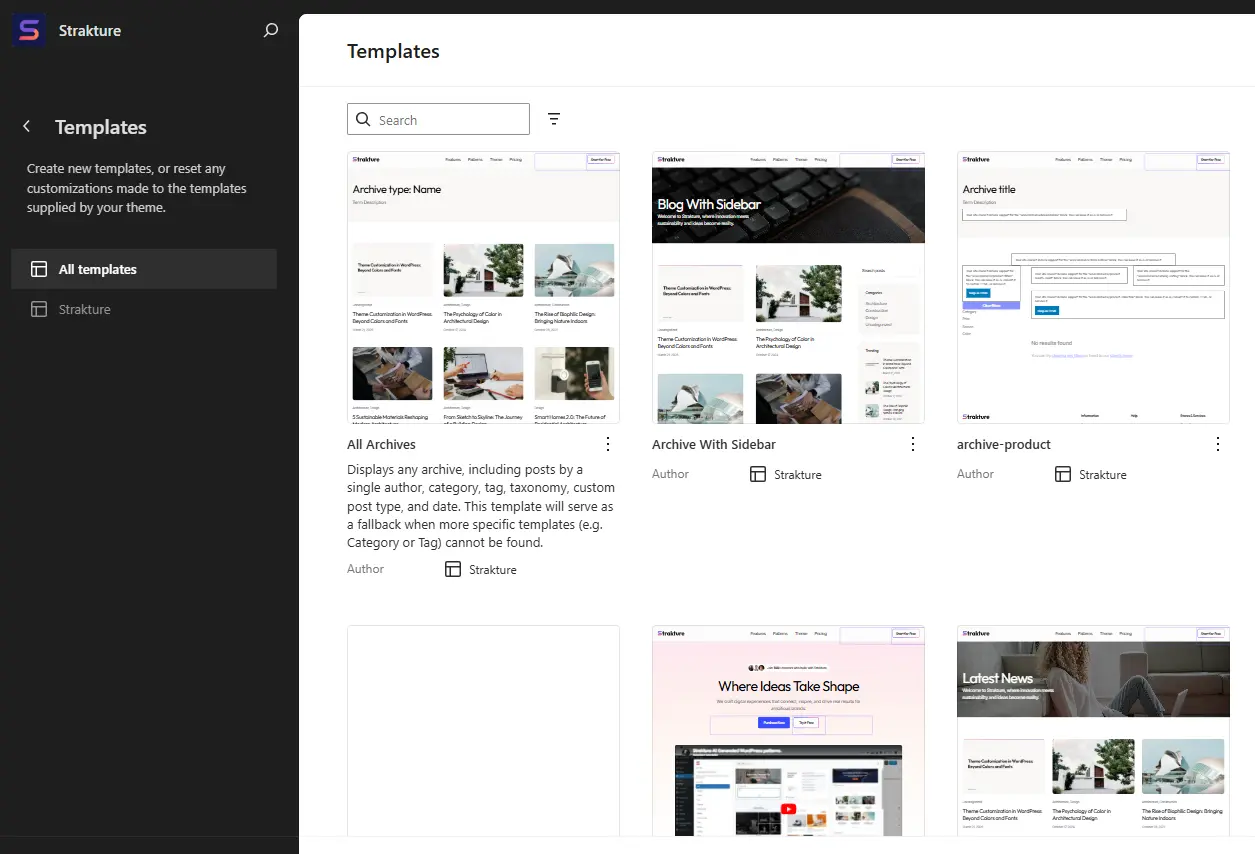
Templates control the overall structure of your site in a block theme. They define how WordPress displays content such as pages, blog archives, single posts, search results, and more.
When using Strakture with a block theme, templates work alongside patterns:
- Templates control the page structure
- Patterns help you build sections inside that structure
Template Overview
In WordPress block themes, templates are used for different types of content.
Common examples include:
- Page templates for standard pages like Home, About, or Contact
- Archive templates for blog archives, category archives, tag archives, or author archives
- Single post templates for individual blog posts
- Search templates for search results pages
- 404 templates for missing pages
Each template controls the layout around the content, including things like the header, footer, title area, spacing, and content container.
Applying and Switching Templates
You can assign a different template to individual pages or posts when your theme supports it.
To switch a template on a page:
- Open the page or post in the WordPress editor.
- Open the settings sidebar.
- Find the Template setting.
- Choose the template you want to use.
- Update or publish the page.
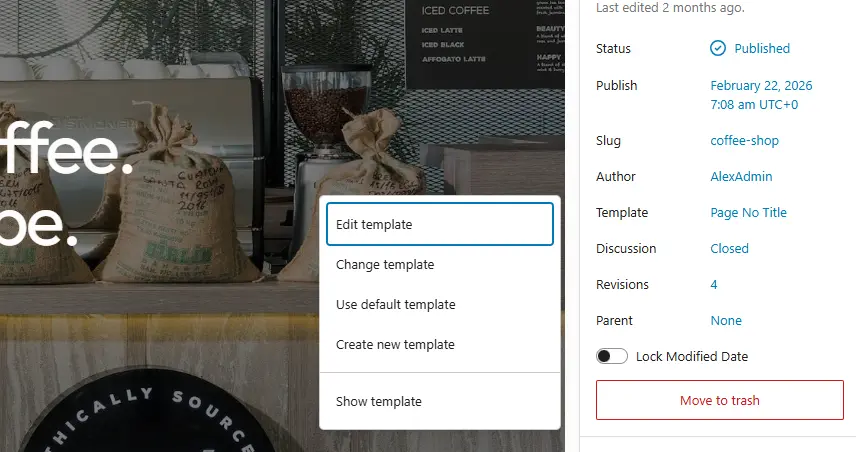
This is useful when one page needs a different layout, such as:
- a landing page without a standard title area
- a full-width sales page
- a simplified contact page
If your theme provides only a few templates, you can create your own in the Site Editor.
Editing Templates in the Site Editor
The Site Editor lets you edit the structure of templates visually.
To edit a template:
- Go to Appearance > Editor.
- Open Templates.
- Choose the template you want to edit.
- Update the layout using blocks, template parts, and patterns.
- Save your changes.
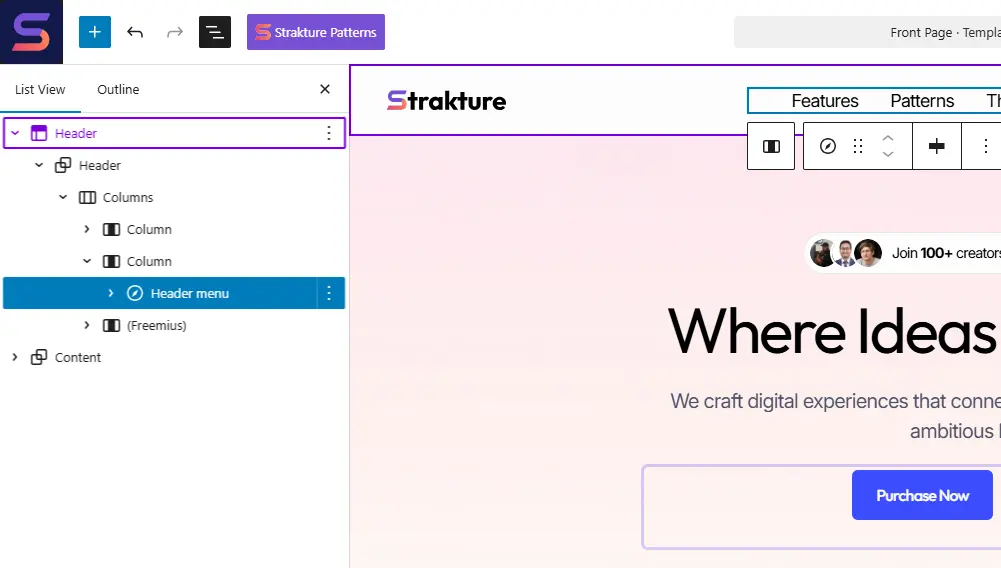
You can edit things like:
- the header and footer
- featured image placement
- title and post meta layout
- content width and spacing
- side sections before or after the main content
When editing templates, remember that changes affect every piece of content using that template.
Creating Custom Templates
If you need a unique layout, you can create a custom template in the Site Editor.
To create one:
- Go to Appearance > Editor.
- Open Templates.
- Click Add New Template.
- Choose the type of template you want to create, or create a custom page template.
- Build the layout with blocks.
- Save the template.
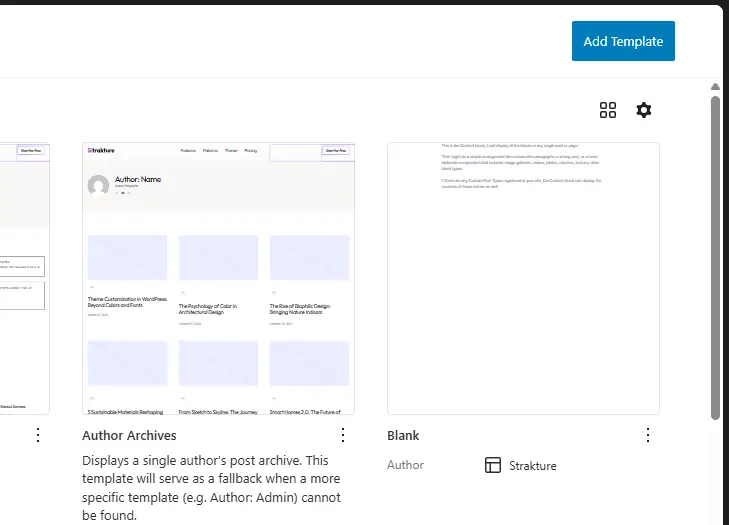
After that, you can assign the custom template to a page or post if WordPress makes that template available in the editor.
Custom templates are useful for:
- service pages with a repeatable structure
- lead generation landing pages
- custom blog post layouts
- content hubs and resource pages
How Templates and Strakture Work Together
Strakture does not replace WordPress templates. Instead, it helps you fill those templates with better-matched content sections.
A practical workflow looks like this:
- Choose or create the template structure in the Site Editor.
- Open the page or template you want to build.
- Use the Strakture Pattern Library to insert or generate sections.
- Refine the page while keeping the overall template consistent across the site.
This gives you a cleaner separation between site-wide layout and page-level content.
Tips for Better Results
- Use a block theme for the best template editing experience.
- Edit templates when you want site-wide layout changes.
- Use patterns when you want to add or replace sections inside a page or template.
- Create custom templates only when the layout needs to be reused.
- Test template changes on real content to make sure headings, images, and spacing still work across different pages.