
Strakture can read the color palettes and typography presets available in your block theme and let you apply them during onboarding. This gives you a fast way to change the overall look of your site before you start generating patterns.
What Color and Font Variations Do
Color and font variations help you customize your site’s design system without editing code.
With them, you can:
- Switch to a different color palette from your theme
- Choose a different typography preset or font combination
- Preview the changes before moving on
- Generate patterns that better match the visual direction you want
These options come from your active theme and its available style variations.
Where to Find Them
You can access these settings in the Strakture setup wizard:
- Go to Strakture in your WordPress admin.
- Start the setup wizard.
- Open the Color Palette step to choose colors.
- Open the Typography step to choose fonts.
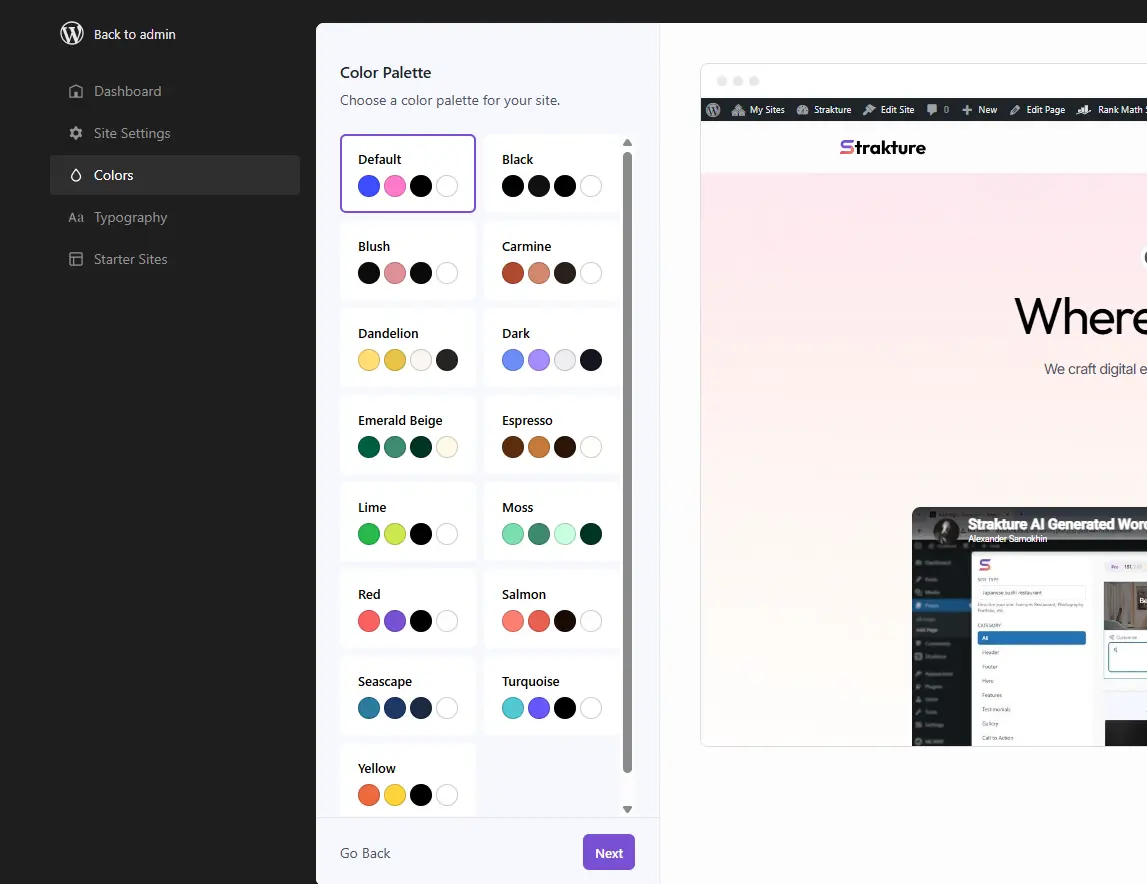
Each step includes a live preview area so you can quickly compare options.
Change the Color Palette
To switch your site’s color variation:
- Open Strakture.
- Go to the Color Palette step.
- Browse the available palette cards.
- Click the palette you want to use.
- Strakture saves the selection and refreshes the preview.
If your theme includes multiple color variations, they will appear here automatically.
Change the Font Variation
To switch your site’s typography variation:
- Open Strakture.
- Go to the Typography step.
- Review the available font combinations.
- Click the preset you want to use.
- Strakture saves the selection and refreshes the preview.
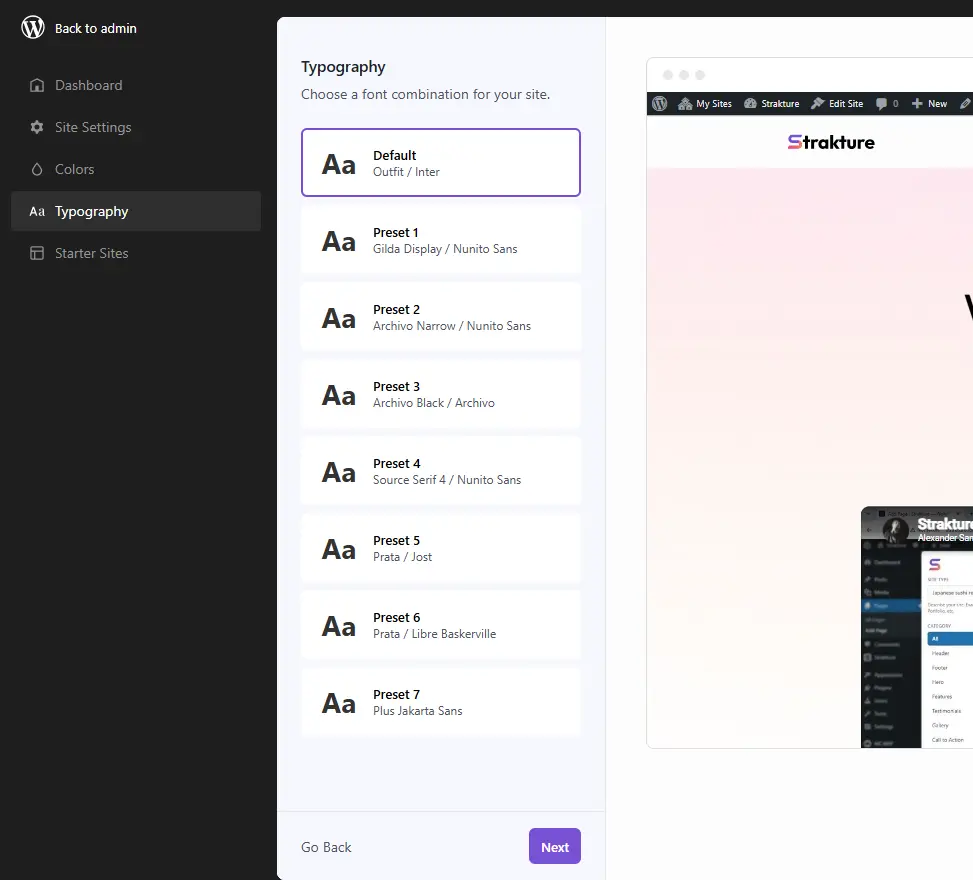
Each preset can include a heading font and a body font, depending on what your theme provides.
Why This Matters for Pattern Generation
Strakture generates patterns based on your theme’s design system. That includes colors, typography, spacing, and layout settings.
If you choose your preferred color palette and font preset before generating patterns, the results will feel more intentional and closer to your final site style.
This is especially helpful when:
- you are starting from a fresh block theme
- your theme includes multiple built-in style variations
- you want generated patterns to match a specific brand direction
Tips for Better Results
- Choose your color palette and typography before generating AI patterns.
- Pair these changes with a clear Site Type for better content and imagery matching.
- Use the preview area to compare options before moving on.
- If your site uses a child theme, check whether its own variations override the parent theme’s options.
If You Don’t See Any Options
Some themes include many style variations, while others include very few.
If Strakture shows no extra color palettes or no font presets, it usually means your active theme does not expose those variations in a way Strakture can read. In that case, Strakture will continue using the theme’s default design settings.