
The Strakture Pattern Library lets you browse ready-made block patterns, insert originals into the editor, or generate AI-matched versions that fit your theme and site content.
Before You Start
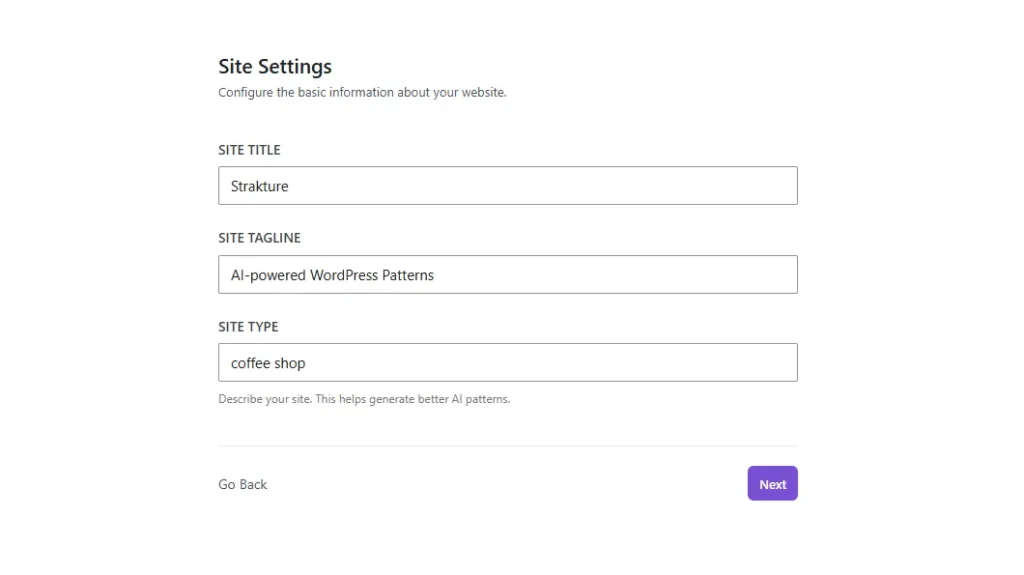
For the best results, make sure your Site Type is filled in. Strakture uses it to tailor generated copy, layout choices, and imagery to your business.
You can set your Site Type in either place:
- Open Strakture > Site Settings and enter something like
Restaurant,Photography Portfolio, orSaaS. - Or open the Pattern Library and fill in the Site Type field in the left sidebar.
If Site Type is blank, generated patterns can still work, but they may feel more generic.
Open the Pattern Library
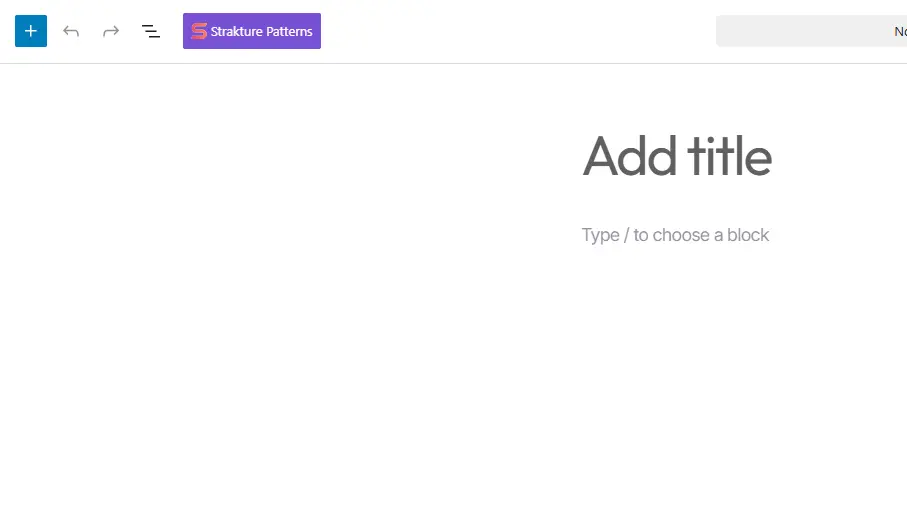
- Open any page, post, or template in the WordPress block editor.
- Click the Strakture Patterns button in the top editor toolbar.
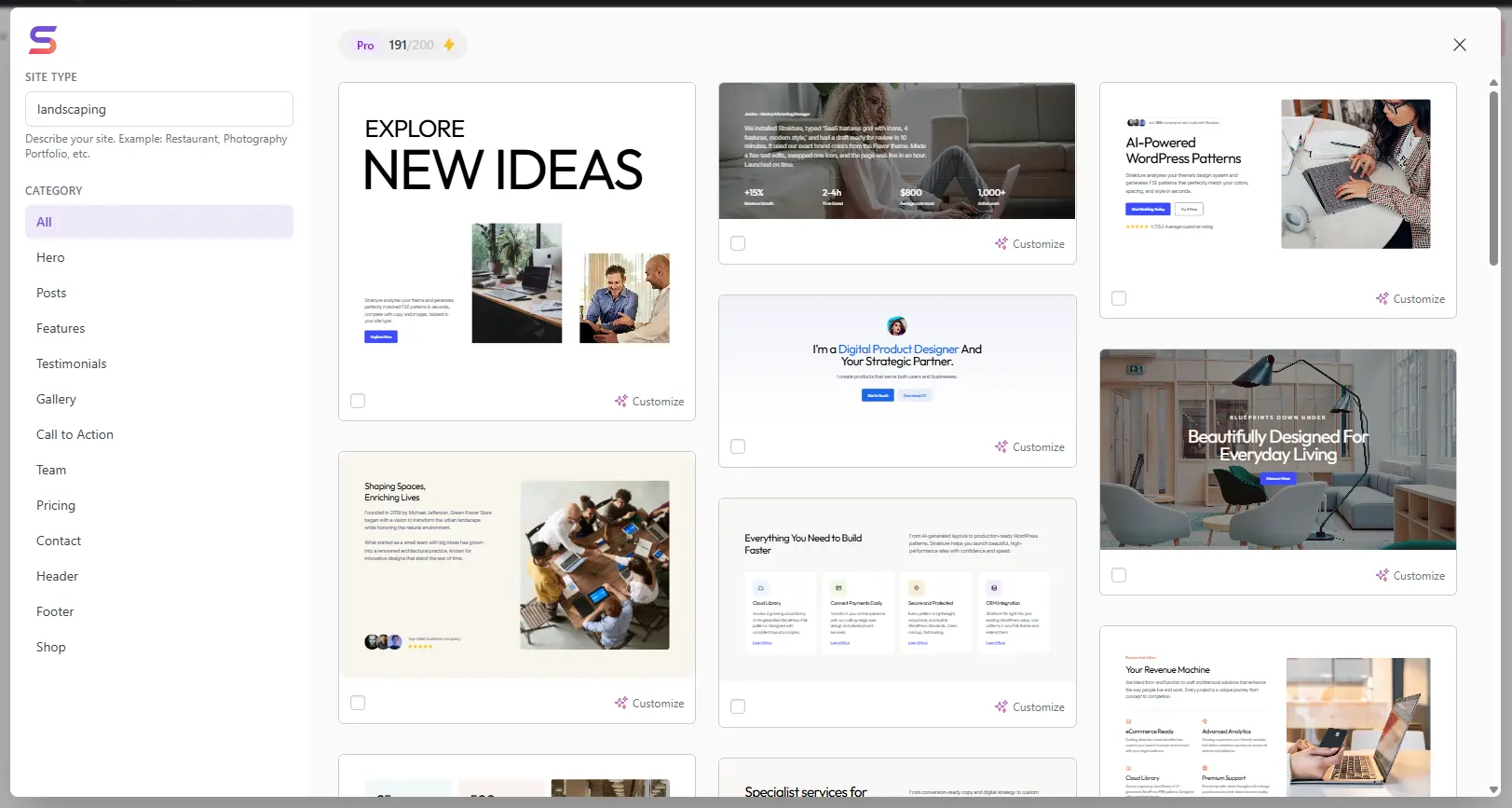
- The Pattern Library modal will open.
- Use the left sidebar to switch categories and narrow down the patterns you want to browse.
Generate a Pattern
Free users can insert original patterns from the library, while Pro users get fully matched AI-generated patterns.
- Make sure your Site Type is set.
- Open the Pattern Library.
- Find a pattern you want to generate.
- Optionally, click Customize and add a prompt.
- Click Generate.
- Strakture creates a version matched to your theme’s colors, typography, spacing, and your site’s context.
- The generated pattern is inserted into the editor.
If images are included, Strakture can also bring in relevant Unsplash images and attribution.
Select and Generate Multiple Patterns
You can select multiple patterns and insert or generate them in one action.
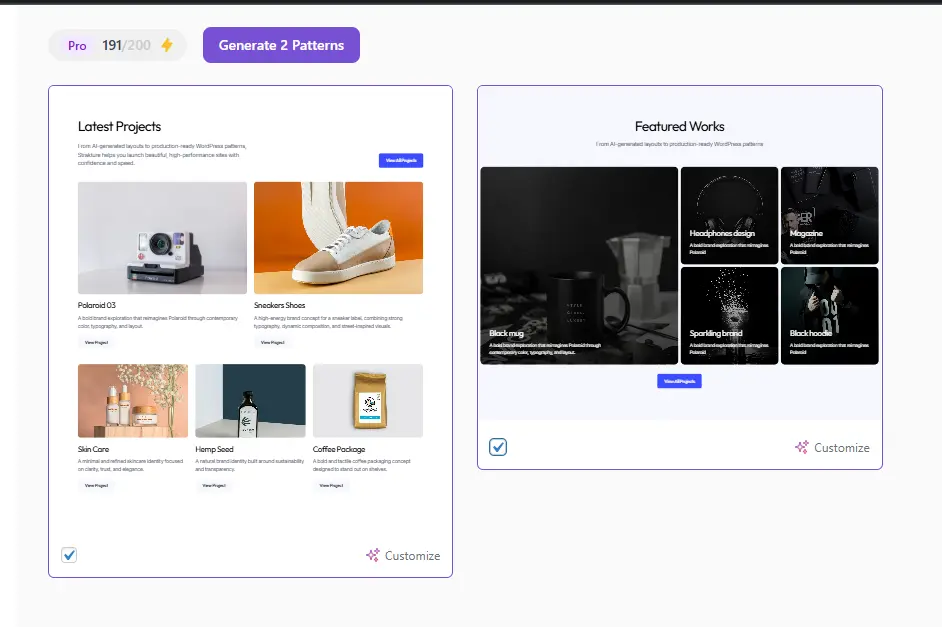
- Open the Pattern Library, enter your Site Type first.
- Use the checkbox on each pattern card to select patterns.
- Continue selecting patterns until you have the set you want.
- Add custom prompts to any selected patterns that need special instructions.
- Click Generate X Patterns in the top bar.
- Insert X Patterns for free users
- Generate X Patterns for Pro users with credits
Strakture will generate and insert the selected patterns in one batch.
Notes:
- You can select up to 10 patterns at a time.
- Batch generation requires enough credits for every selected pattern.
Add a Custom Prompt
Pro users can customize a pattern before generating it.
- Find the pattern you want to customize.
- Click Customize on that pattern card.
- Enter a plain-English prompt describing what you want changed.
- Click Generate.
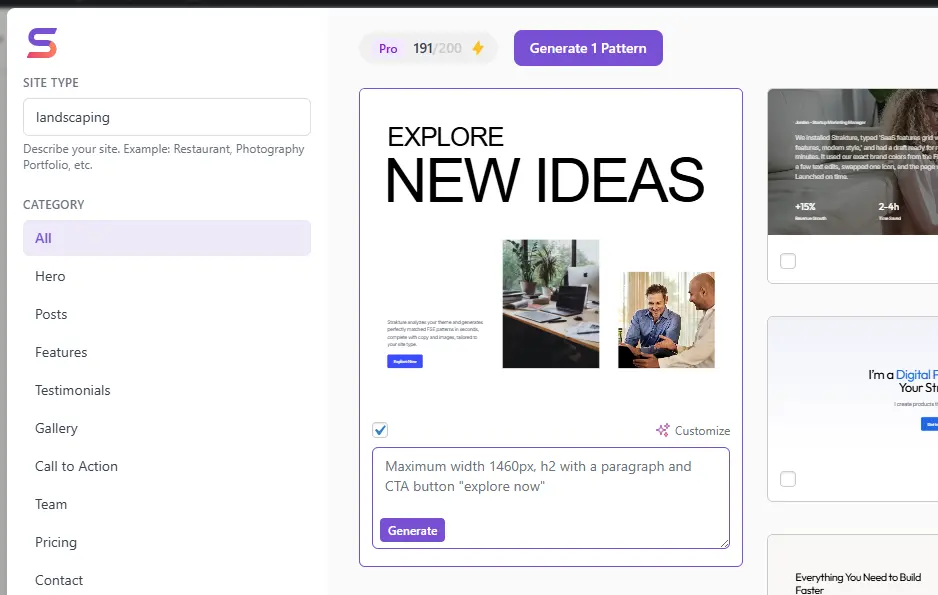
Example prompts:
Dark background with a stronger headlineAdd a subtitle and a CTA buttonUse a 3-column layoutMaximum width 1460px with more spacing between sections
Keep prompts focused on layout, content emphasis, and styling direction. Strakture will still match the result to your theme.
Tips for Better Results
- Always add a clear Site Type before generating.
- Be specific when your prompt changes structure, tone, or emphasis.
- Use broad prompts like
cleaner,more premium, ormore modernonly when you want creative interpretation. - Use precise prompts like
add testimonial cards,make this 3 columns, oradd a secondary buttonwhen you want tighter control. - If a pattern is close but not perfect, generate it again with a clearer prompt instead of settling for a generic result.
Credits and Availability
- Free: Browse the full library and insert original patterns.
- Pro: Generate AI-customized patterns, use custom prompts, and batch generate selected patterns.
Each generated pattern uses one credit.