
Adding WordPress theme.json Google Fonts to your block theme gives you full control over typography without writing a single line of CSS. Yet most site owners either load fonts from an external CDN (a GDPR risk) or never move past the defaults their theme shipped with.
Typography shapes how visitors perceive your brand. Research from MIT confirms that font choice affects emotional response, and a CXL study found that changing font styling alone improved engagement by 38%. The right typeface builds trust. The wrong one drives people away before they read a word.
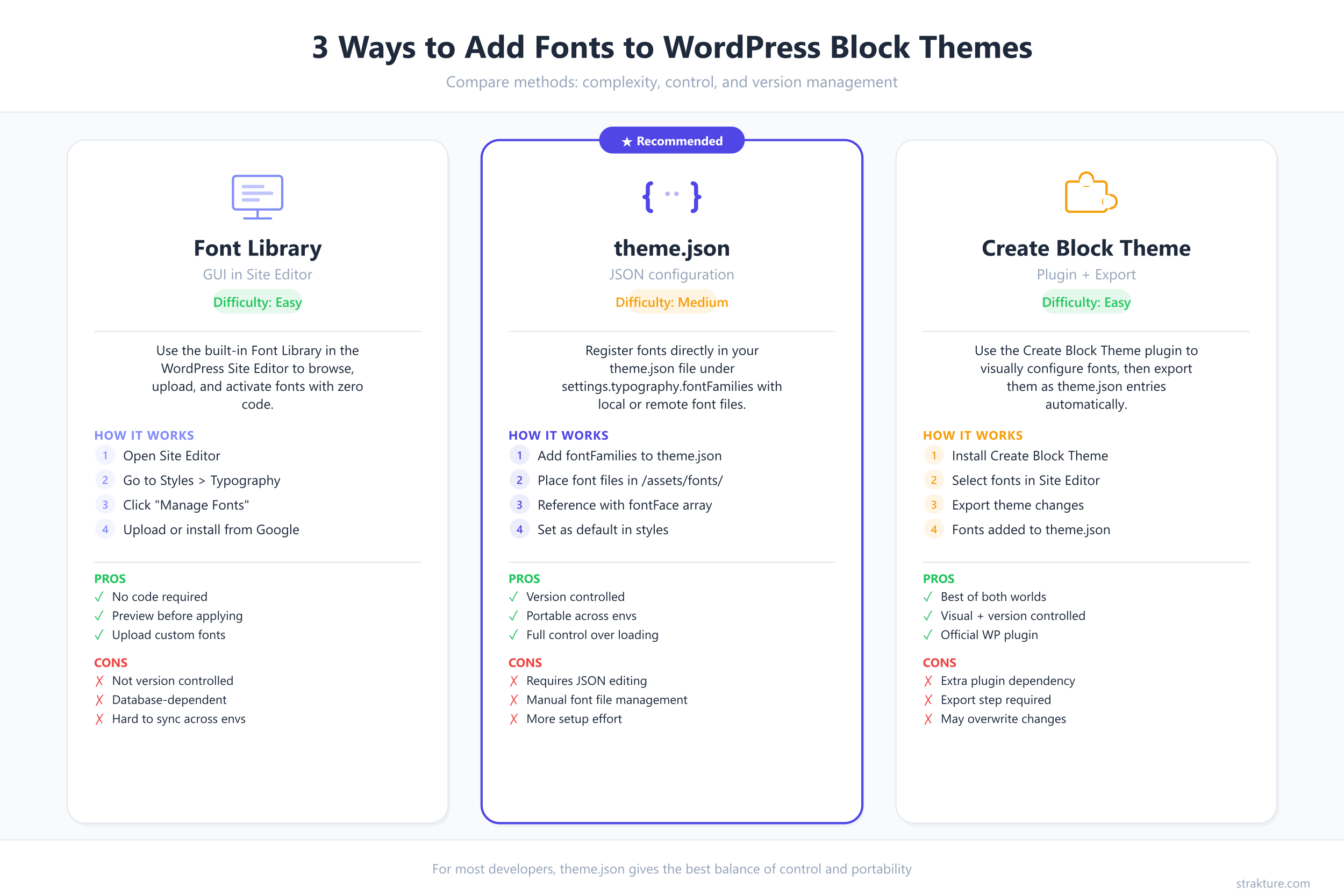
WordPress gives you three distinct paths to add custom fonts to a block theme. Each trades convenience for control. This guide walks through all three, from the zero-code Font Library to manual theme.json registration, with GDPR guidance and type pairings ready to paste into your theme.
Why Custom Fonts Matter for WordPress Block Themes
Your theme’s default system font stack works. It loads instantly and never triggers a layout shift. But it also looks identical to thousands of other WordPress sites running the same theme.
Custom fonts solve three problems at once. First, they establish brand identity. A SaaS product using Space Grotesk communicates something fundamentally different from a law firm using Playfair Display. Second, they improve readability when paired correctly. Switching from a 10px generic sans-serif to a 16px purpose-built reading font reduced one site’s bounce rate by 7.1% in WebFX testing.
Third, and this is where block themes shine, fonts listed in theme.json become design tokens. WordPress converts them into CSS custom properties like --wp--preset--font-family--heading that every block on your site can reference. Change the font once, and headings update everywhere. Tools like Strakture read these typography tokens when generating AI-powered block patterns, so the output matches your actual font stack instead of shipping generic styles. (For deeper context, see our guide to WordPress design tokens.)
Method 1: The Font Library in the Site Editor (Easiest)
WordPress 6.5 introduced a built-in Font Library that lets you install Google Fonts or upload local files without touching any code. For custom typography in five minutes, start here.
How to Access It
Open your WordPress admin and go to Appearance > Editor. Click the Styles icon (half-circle) in the top-right corner, then select Typography > Manage Fonts. This opens the Font Library panel with three tabs: Library, Upload, and Install Fonts.
Installing from Google Fonts
Click the Install Fonts tab. WordPress connects to the Google Fonts collection and displays a searchable list. Find your font, select the weights you need (Regular 400, Medium 500, Bold 700 are a solid baseline), and click Install. WordPress downloads the files to your site and serves them locally.
This local download is a key detail. The Font Library does not link to Google’s CDN. It stores the fonts on your WordPress installation, which means visitor IP addresses never reach Google’s servers. GDPR compliance comes built in.
Uploading Custom Font Files
The Upload tab accepts .ttf, .otf, .woff, and .woff2 files. Drag your font files into the upload area, and WordPress registers them automatically. This works for commercial fonts or custom typefaces that are not available on Google Fonts.
Applying Your Fonts Globally
After installation, go back to Styles > Typography. Select an element type (Text, Links, Headings, Captions, or Buttons) and choose your new font from the dropdown. Save your changes. Every block using that element type now renders in your chosen typeface.
Pros: No code required. GDPR-safe by default. Works immediately in the Site Editor.
Cons: Font settings live in the database, not in your theme files. They are not version-controlled and do not transfer when you move themes between environments. If you reset customizations, the font assignments disappear.
Method 2: Registering Fonts in theme.json (Recommended)
For production sites and theme developers, registering WordPress theme.json fonts directly gives you version control, portability, and precise loading behavior. This is how the Twenty Twenty-Five default theme handles its typography.
Step 1: Add Font Files to Your Theme
Create an assets/fonts/ directory inside your theme. Place your .woff2 files there. The .woff2 format offers the best compression and is supported by every modern browser. You can download Google Fonts in .woff2 format from google-webfonts-helper or directly from the Google Fonts site.
Step 2: Register fontFamilies in theme.json
Open your theme.json file and add your fonts under settings.typography.fontFamilies. Each font family needs a name, slug, CSS font-family value, and an array of fontFace declarations pointing to your local files.
Here is a complete example registering Inter for body text and Merriweather for headings:
{
  "version": 3,
  "settings": {
    "typography": {
      "fontFamilies": [
        {
          "name": "Inter",
          "slug": "body-font",
          "fontFamily": "'Inter', sans-serif",
          "fontFace": [
            {
              "fontFamily": "Inter",
              "fontWeight": "400",
              "fontStyle": "normal",
              "fontDisplay": "swap",
              "src": ["file:./assets/fonts/inter-regular.woff2"]
            },
            {
              "fontFamily": "Inter",
              "fontWeight": "700",
              "fontStyle": "normal",
              "fontDisplay": "swap",
              "src": ["file:./assets/fonts/inter-bold.woff2"]
            }
          ]
        },
        {
          "name": "Merriweather",
          "slug": "heading-font",
          "fontFamily": "'Merriweather', serif",
          "fontFace": [
            {
              "fontFamily": "Merriweather",
              "fontWeight": "700",
              "fontStyle": "normal",
              "fontDisplay": "swap",
              "src": ["file:./assets/fonts/merriweather-bold.woff2"]
            },
            {
              "fontFamily": "Merriweather",
              "fontWeight": "400",
              "fontStyle": "italic",
              "fontDisplay": "swap",
              "src": ["file:./assets/fonts/merriweather-italic.woff2"]
            }
          ]
        }
      ]
    }
  }
}
The file:./ prefix tells WordPress to look for the font file relative to your theme root. WordPress reads these declarations, generates @font-face CSS rules, and enqueues the fonts on both the front end and inside the block editor.
Step 3: Apply Fonts to Body and Headings
Registering fonts makes them available. Applying them requires the styles section of theme.json. Set body text at the root level and target headings through the elements property:
{
  "version": 3,
  "styles": {
    "typography": {
      "fontFamily": "var(--wp--preset--font-family--body-font)",
      "fontSize": "var(--wp--preset--font-size--medium)",
      "lineHeight": "1.7"
    },
    "elements": {
      "heading": {
        "typography": {
          "fontFamily": "var(--wp--preset--font-family--heading-font)",
          "fontWeight": "700",
          "lineHeight": "1.3"
        }
      }
    }
  }
}
WordPress outputs variables following the pattern --wp--preset--font-family--{slug}. Any block or stylesheet can reference these tokens, creating a consistent typography system across your entire site.
Pros: Version-controlled in Git. Portable across environments. Complete authority over font-display strategy and which weights load. Works in both editor and front end automatically.
Cons: Requires FTP or file-system access. You must download font files manually and keep them updated.
Method 3: Using the Create Block Theme Plugin
What if you prefer the convenience of the Font Library with the durability of theme.json? The Create Block Theme plugin, maintained by the WordPress core team, bridges that gap.
How It Works
Install and activate the plugin from the WordPress plugin directory. Then use the Font Library (Method 1) to install any Google Font or add your own .woff2 files. Once your fonts are active, open Appearance > Create Block Theme and select “Save Changes to Theme.”
The plugin moves the font files to your theme’s directory and writes the corresponding fontFamilies entries into theme.json. The result is identical to Method 2, but you never edit JSON by hand.
Exporting a Complete Theme
You can also export your entire theme as a .zip file with all customizations baked in. This is ideal for freelancers building client sites. Design the typography in the browser, export the theme, and deploy it anywhere.
Pros: GUI workflow that writes to theme.json. Fonts become part of the theme bundle. Exportable as a ready-to-deploy .zip.
Cons: Requires an additional plugin during development. You still need to understand theme.json to fine-tune font-display values or add variable font ranges after export.
GDPR and Performance: Why Self-Hosting Fonts Wins
A German court ruling in January 2022 (LG Munich I, Case No. 3 O 17493/20) established that loading Google Fonts from Google’s CDN violates the GDPR. The reasoning is straightforward: when a visitor loads your page, their browser sends a request to fonts.googleapis.com, transmitting their IP address to Google without consent. That IP address counts as personal data under EU law.
Since that ruling, similar decisions have followed across Europe. The fix is simple: host font files on your own server. All three methods described above achieve this automatically. The Font Library downloads files locally. theme.json references local files with file:./ paths. Create Block Theme saves files alongside your theme code.
Performance Benefits of Local Fonts
Self-hosted fonts also load faster in most scenarios. Browsers no longer benefit from a shared Google Fonts cache (Chrome removed it in 2020 for privacy reasons). A locally hosted .woff2 file served from your existing CDN or server avoids the DNS lookup, TLS handshake, and connection overhead of reaching an external domain.
Two settings to configure for optimal loading:
- font-display: swap tells the browser to show a fallback font immediately, then swap in the custom font once loaded. This prevents invisible text and protects your Largest Contentful Paint score. Set it with
"fontDisplay": "swap"in your fontFace declarations. - Subset your fonts to include only the character sets you need. A full Inter .woff2 file weighs roughly 100KB. Subsetting to Latin characters drops it below 20KB. Google’s own research shows that a 0.1-second improvement in load time lifts conversions by up to 8% in e-commerce. Tools like google-webfonts-helper let you select specific subsets during download.
How to Convert Google Fonts to Local Files
Visit google-webfonts-helper. Search for the typeface you need, pick the weights and character sets, choose the “Modern Browsers” option (woff2 only), download the zip, and place the extracted files in your theme’s assets/fonts/ folder. The tool also generates CSS snippets, though you will not need them since theme.json handles the @font-face declarations.
Font Pairing Examples with theme.json Snippets
Choosing a single font is only half the decision. The pairing between your heading and body typefaces defines your site’s visual personality. Here are four proven combinations, each with the theme.json fontFamilies snippet you can drop into any block theme.
Inter + Merriweather (Modern + Readable)
A clean geometric sans-serif paired with a traditional serif designed for screens. Works for blogs, SaaS marketing sites, and editorial content. Inter handles UI elements while Merriweather makes long-form text comfortable to read.
{
  "fontFamilies": [
    {
      "name": "Inter",
      "slug": "body-font",
      "fontFamily": "'Inter', sans-serif",
      "fontFace": [
        { "fontFamily": "Inter", "fontWeight": "400", "fontStyle": "normal", "fontDisplay": "swap", "src": ["file:./assets/fonts/inter-regular.woff2"] },
        { "fontFamily": "Inter", "fontWeight": "700", "fontStyle": "normal", "fontDisplay": "swap", "src": ["file:./assets/fonts/inter-bold.woff2"] }
      ]
    },
    {
      "name": "Merriweather",
      "slug": "heading-font",
      "fontFamily": "'Merriweather', serif",
      "fontFace": [
        { "fontFamily": "Merriweather", "fontWeight": "700", "fontStyle": "normal", "fontDisplay": "swap", "src": ["file:./assets/fonts/merriweather-bold.woff2"] }
      ]
    }
  ]
}
Poppins + Lora (Friendly + Elegant)
Poppins brings a rounded, approachable feel to headings. Lora is a brushed serif with balanced curves that reads well at body sizes. Strong fit for creative agencies, lifestyle brands, and portfolios.
{
  "fontFamilies": [
    {
      "name": "Poppins",
      "slug": "heading-font",
      "fontFamily": "'Poppins', sans-serif",
      "fontFace": [
        { "fontFamily": "Poppins", "fontWeight": "600", "fontStyle": "normal", "fontDisplay": "swap", "src": ["file:./assets/fonts/poppins-semibold.woff2"] }
      ]
    },
    {
      "name": "Lora",
      "slug": "body-font",
      "fontFamily": "'Lora', serif",
      "fontFace": [
        { "fontFamily": "Lora", "fontWeight": "400", "fontStyle": "normal", "fontDisplay": "swap", "src": ["file:./assets/fonts/lora-regular.woff2"] },
        { "fontFamily": "Lora", "fontWeight": "400", "fontStyle": "italic", "fontDisplay": "swap", "src": ["file:./assets/fonts/lora-italic.woff2"] }
      ]
    }
  ]
}
Space Grotesk + Source Serif Pro (Techy + Professional)
Space Grotesk has a distinctive monospaced quality that signals technical credibility. Source Serif Pro grounds it with a professional reading experience. Ideal for developer tools, documentation sites, and B2B technology companies.
{
  "fontFamilies": [
    {
      "name": "Space Grotesk",
      "slug": "heading-font",
      "fontFamily": "'Space Grotesk', sans-serif",
      "fontFace": [
        { "fontFamily": "Space Grotesk", "fontWeight": "500", "fontStyle": "normal", "fontDisplay": "swap", "src": ["file:./assets/fonts/space-grotesk-medium.woff2"] },
        { "fontFamily": "Space Grotesk", "fontWeight": "700", "fontStyle": "normal", "fontDisplay": "swap", "src": ["file:./assets/fonts/space-grotesk-bold.woff2"] }
      ]
    },
    {
      "name": "Source Serif Pro",
      "slug": "body-font",
      "fontFamily": "'Source Serif Pro', serif",
      "fontFace": [
        { "fontFamily": "Source Serif Pro", "fontWeight": "400", "fontStyle": "normal", "fontDisplay": "swap", "src": ["file:./assets/fonts/source-serif-pro-regular.woff2"] },
        { "fontFamily": "Source Serif Pro", "fontWeight": "600", "fontStyle": "normal", "fontDisplay": "swap", "src": ["file:./assets/fonts/source-serif-pro-semibold.woff2"] }
      ]
    }
  ]
}
DM Sans + Playfair Display (Clean + Sophisticated)
DM Sans is a low-contrast geometric sans-serif that stays neutral at small sizes. Playfair Display commands attention in headings with its high stroke contrast. A natural fit for luxury brands, real estate sites, and upscale e-commerce.
{
  "fontFamilies": [
    {
      "name": "Playfair Display",
      "slug": "heading-font",
      "fontFamily": "'Playfair Display', serif",
      "fontFace": [
        { "fontFamily": "Playfair Display", "fontWeight": "700", "fontStyle": "normal", "fontDisplay": "swap", "src": ["file:./assets/fonts/playfair-display-bold.woff2"] }
      ]
    },
    {
      "name": "DM Sans",
      "slug": "body-font",
      "fontFamily": "'DM Sans', sans-serif",
      "fontFace": [
        { "fontFamily": "DM Sans", "fontWeight": "400", "fontStyle": "normal", "fontDisplay": "swap", "src": ["file:./assets/fonts/dm-sans-regular.woff2"] },
        { "fontFamily": "DM Sans", "fontWeight": "500", "fontStyle": "normal", "fontDisplay": "swap", "src": ["file:./assets/fonts/dm-sans-medium.woff2"] }
      ]
    }
  ]
}
Which Method Should You Use? A Comparison
Each approach serves a different workflow. Here is how they compare across the criteria that matter most:
| Criteria | Font Library (Method 1) | theme.json (Method 2) | Create Block Theme (Method 3) |
|---|---|---|---|
| Difficulty | Beginner | Intermediate | Beginner-Intermediate |
| Version Control | No (stored in database) | Yes (in theme files) | Yes (exports to theme files) |
| GDPR Safe | Yes (downloads locally) | Yes (local files) | Yes (copies to theme) |
| Survives Theme Reset | No | Yes | Yes |
| Best For | Content editors, quick changes | Theme developers, production sites | Freelancers building client themes |
For a single site you manage through the admin, Method 1 gets the job done in minutes. For a theme you ship to clients or maintain across staging and production environments, Method 2 is the standard. Method 3 offers a productive middle path: design in the browser, export to theme files.
Whichever path you choose, the fonts you register become part of your theme’s design token system. Strakture reads these font tokens alongside your colors and spacing values, which means AI-generated patterns will use your exact title and paragraph typefaces rather than falling back to generic sans-serif. The more precisely you define your typography in theme.json, the more cohesive every generated pattern becomes.
Typography Is the Foundation, Not the Afterthought
Fonts are often the last decision site owners make. They should be among the first. A well-chosen type pairing, properly defined in theme.json with local files and swap loading, creates a visual foundation that every other design decision builds on.
Start with Method 1 to experiment. Graduate to Method 2 when you are ready to lock in your typography for production. And if you need block patterns that actually respect those font choices, Strakture reads your theme.json tokens and generates patterns that match your headings, body text, and spacing from the first insert.
WordPress Theme.json Google Fonts FAQs
Do I need to load Google Fonts from Google’s CDN for WordPress?
No. All three methods described above download font files and serve them from your own server. WordPress’s built-in Font Library, theme.json fontFace declarations, and the Create Block Theme plugin all store fonts locally. This avoids the GDPR issues associated with loading fonts from fonts.googleapis.com.
What font file format should I use in theme.json?
Use .woff2 exclusively for modern browsers. It offers the best compression (30-50% smaller than .woff) and is supported by every browser released since 2016. If you need to support very old browsers, add a .woff fallback as a second entry in the src array.
Can I use variable fonts in WordPress theme.json?
Yes. Register a single font file and specify a weight range like “300 800” instead of individual weight values. WordPress handles the @font-face declaration correctly for variable fonts. This reduces the number of font files from several to just one per style (normal and italic).
Will custom fonts registered in theme.json appear in the block editor?
Yes. WordPress enqueues fonts declared in theme.json in both the front end and the Site Editor. Any font you register appears in the typography dropdown when editing blocks, so your editing experience matches the published page exactly.
Does Strakture use my theme’s custom fonts when generating patterns?
Yes. Strakture reads the typography tokens from your theme.json, including font families, weights, and sizes. Generated patterns reference your font variables rather than hardcoding typeface names, so they render in your chosen typefaces automatically.

Leave a Reply