
A WordPress redesign breaks more than most site owners expect. Switching themes, updating layouts, and refreshing the visual identity sounds straightforward. Then you discover that every pattern, custom section, and carefully styled block no longer matches.
The $58 average cost-per-click on this keyword tells you something: agencies charge thousands for redesign projects. But if you run a block theme and understand your WordPress document your current design system, you can handle much of the work yourself.
This checklist covers what to preserve, what to rebuild, and how to keep your design consistent throughout the process.
What a WordPress Redesign Actually Involves
Most redesign guides focus on visual inspiration and goal-setting. They skip the technical reality: your site’s design tokens, rebuild your block patterns, and template structure all change when you switch themes.
A WordPress redesign on a block theme means replacing the theme.json file that controls your entire design system. Colors, typography, spacing presets, and layout widths all reset to the new theme’s defaults. Every page that relied on the old values needs attention.
A study by Portent found that website conversion rates drop by an average of 4.42% for each additional second of load time between 0 and 5 seconds, making performance testing a critical part of any redesign.
On a classic theme, the impact is even broader. Template files, widget areas, and shortcodes may disappear entirely. Block themes give you a more portable foundation because content lives in blocks, not PHP templates. That portability makes a DIY redesign realistic.
Before You Start: Document Your Current Design System
One step separates a smooth redesign from a painful one. Before touching anything, record the design tokens your current theme uses.
Open Global Styles in the Site Editor and note these values:
- Color palette: Primary, secondary, accent, background, and text hex codes
- Typography: Heading font, body font, base size, and scale ratio
- Spacing: Default block gap, section padding, container widths
- Custom CSS: Any additions you made through the Additional CSS panel
Screenshot or export your current theme.json settings. You will reference this document repeatedly as you configure the new theme. Without it, you are guessing at values you spent months refining.
The WordPress Redesign Checklist
Follow these steps in order. Skipping ahead creates problems that compound later.
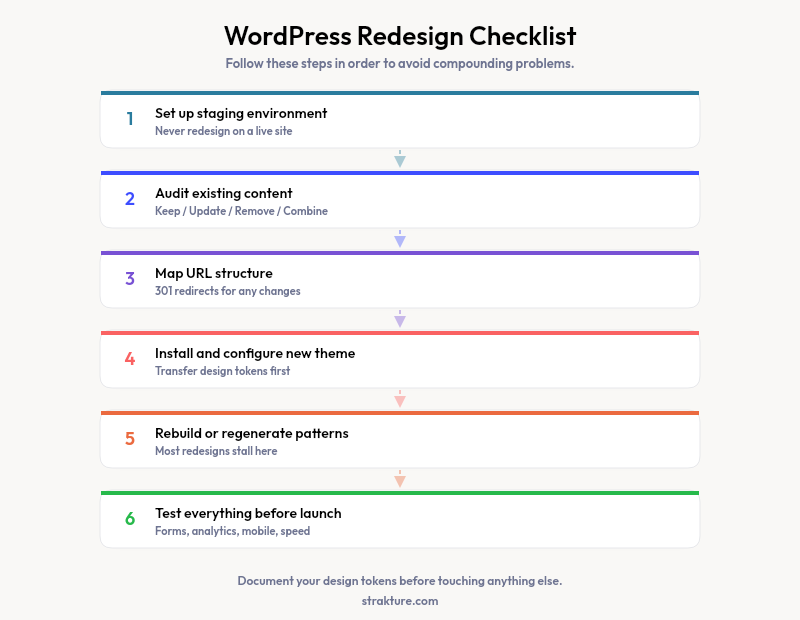
1. Set Up a Staging Environment
Never redesign on a live site. Most WordPress hosts offer one-click staging. Local development tools like LocalWP work too. Clone your production site, then make all changes on the copy.
2. Audit Your Existing Content
Create a spreadsheet with four columns: Keep, Update, Remove, and Combine. Review every page and post. Flag content that performs well in search, content that needs rewriting, and pages you can merge or delete. This audit prevents carrying dead weight into the new design.
3. Map Your URL Structure
If any URLs change during the redesign, set up 301 redirects before going live. Broken links destroy search rankings. Export your current sitemap and compare it against the new structure. Every old URL must point somewhere valid.
According to SEMrush, 68% of website redesigns result in temporary traffic drops of 10-30% when URL structures change without proper redirects.
4. Install and Configure the New Theme
Activate your new block theme on staging. Open Global Styles and transfer the design tokens from your documentation. Match your color palette first, then typography, then spacing. The closer your new wordpress theme system mirrors the old one, the fewer blocks you will need to fix manually.
5. Rebuild or Regenerate Your Patterns
This is where most redesigns stall. Your existing block patterns referenced the old theme’s CSS variables. The new theme uses different variable names for the same concepts. Hero sections, feature grids, and testimonial blocks all need updating.
You have two options. Manually edit each pattern to reference the new theme’s tokens. Or use a tool like Strakture that reads your new theme’s design system and generates fresh patterns matched to its color palette, typography, and spacing. The second approach saves significant time when you have more than a handful of custom sections.
6. Test Everything Before Launch
Check every form submission. Verify analytics tracking. Test on mobile, tablet, and desktop. Run a speed test comparing staging to production. Review your site in multiple browsers. Small issues caught here prevent support requests after launch.
What to Keep vs What to Replace
Not everything needs rebuilding. Knowing where to invest your effort makes the difference between a weekend project and a month-long ordeal.
- Keep: Written content, media files, SEO metadata, URL structure, analytics setup
- Replace: Theme-dependent patterns, hardcoded color values, legacy shortcodes, widget-area content
- Rebuild: Header and footer templates, navigation menus (if template parts changed), any sections using inline style overrides
Block content (paragraphs, headings, images, lists) transfers between themes without issues. Layout blocks (columns, groups, covers) may need spacing adjustments. Pattern-based sections almost always need regeneration because they carry the old theme’s visual assumptions.
Launch Your Redesigned Site with Confidence
A WordPress redesign does not require an agency or a five-figure budget. Document your current design tokens, work on staging, transfer your settings methodically, and regenerate patterns that reference the new theme’s values.
Strakture speeds up the pattern regeneration step by reading your new theme’s design system and producing sections that match it natively. If you are switching themes and want consistent patterns from the first insert, it handles the translation between old and new automatically.
How long does a WordPress redesign take?
A straightforward theme switch on a block theme takes a weekend for a 10-15 page site. Larger sites with custom patterns, multiple post types, and complex layouts may take one to two weeks. The content audit and URL mapping steps take the longest. The actual theme swap is fast if you documented your design tokens beforehand.
Will a redesign hurt my SEO rankings?
Only if you break URLs or remove content that ranks well. Keep your URL structure intact, set up 301 redirects for any changes, and preserve your SEO metadata (titles, descriptions, focus keywords). A faster, better-structured site typically improves rankings within a few weeks of launch.
Can I redesign without losing my block patterns?
The block content inside patterns transfers between themes. But the visual styling (colors, fonts, spacing) likely breaks because different themes use different CSS variable names. You will need to update patterns manually or regenerate them. Strakture can produce new patterns matched to your replacement theme’s design tokens, skipping the manual correction step.
Should I switch from a classic theme to a block theme?
If your classic theme still meets your needs, a redesign is not mandatory. But block themes offer full design system control through theme.json, better pattern compatibility, and the visual Site Editor. The migration requires more upfront work because classic theme widgets, sidebars, and template overrides do not carry over. The long-term maintenance savings usually justify the effort.

Leave a Reply