
Your WordPress design system controls every color, font, and spacing value on your site. Most site owners interact with it daily through the Site Editor without knowing it has a name. Understanding how it works changes the way you build pages.
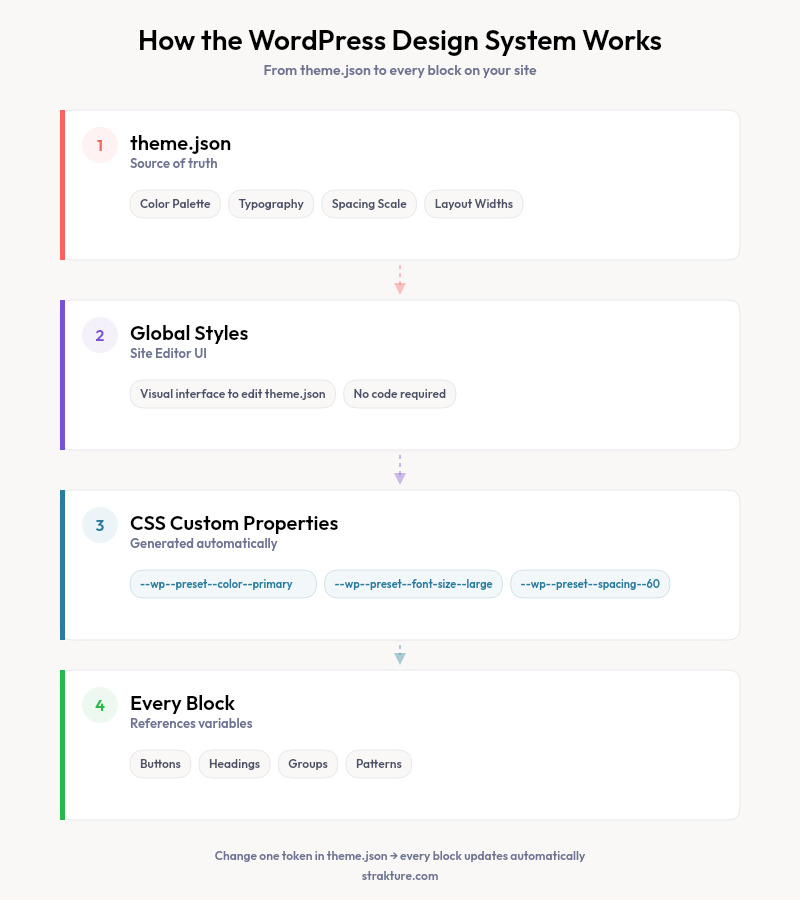
Block themes shifted control from scattered CSS files into a single structured file called theme.json. That file acts as the source of truth for your entire visual identity. When you pick a heading font or set a primary color in Global Styles, the value lives there.
Research by the Nielsen Norman Group shows that design systems reduce UI inconsistencies by up to 47% and cut design-to-development handoff time by 34%.
This article explains what a design system means for WordPress, what theme.json actually governs, and why it matters when you add patterns or build new pages.
What a WordPress Design System Actually Is
You’ve configured your color palette, selected fonts, and adjusted spacing in the Site Editor. Without realizing it, you created a design system. A design system in WordPress is the collection of visual rules your theme applies to every block on the site.
In classic themes, these rules scattered across multiple CSS files. Changing a button color meant hunting through stylesheets. Block themes consolidate everything into theme.json, which stores your decisions in one place. The block editor reads this file and applies your choices automatically.
Here is what your WordPress theme system defines through theme.json:
- Color palette: Primary, secondary, accent, background, and text colors
- Typography presets: Font families, sizes, weights, and line heights
- Spacing scale: Padding and margin tokens from small to extra-large
- Layout widths: Content area and wide alignment boundaries
- Block-level rules: Button radius, image ratios, heading letter spacing
Themes like Kadence, Neve, Blocksy, and Astra expose these settings through their customization panels. Behind every slider and dropdown sits a theme.json value that the block editor respects across your entire site.
As of WordPress 6.6, theme.json supports over 120 distinct design tokens across colors, typography, spacing, and layout, giving block themes a built-in design system framework.
Why Your Design System Breaks When You Add Patterns
You find a block pattern from a library, insert it, and the section looks wrong. The heading font switched. Button colors don’t match. Padding feels off compared to the rest of your page.
This happens because most pattern libraries ship hardcoded styles. They bake in specific hex codes, pixel values, and font names rather than referencing your theme’s CSS custom properties from theme.json. The pattern carries its own visual language. Your site carries a different one.
The conflict grows with customization. A starter theme with default settings may absorb generic patterns without visible clashes. A Blocksy site with a custom palette, adjusted type scale, and modified container widths will fight almost every external pattern you drop in.
This is the core problem a design system for WordPress is meant to solve. When every element references the same set of tokens, new sections look native from the moment you insert them.
How Global Styles Connects to Every Block
Open the Site Editor and click the styles icon in the top right. That panel is your direct interface to theme.json. Every change you make there cascades across the entire site.
Set your heading font to Playfair Display. Every H1 through H6 on every page updates instantly. Change your primary color from blue to forest green. Buttons, links, and accent elements all shift together. Adjust your base spacing from 1.5rem to 2rem. Block gaps and section padding respond in unison.
This cascade works because WordPress generates CSS variables from your theme.json values. A button block doesn’t store “blue” as its color. It stores a reference like var(--wp--preset--color--primary). When you change the primary color, every block pointing to that variable updates without manual editing.
The system breaks only when something bypasses these variables. Inline styles and hardcoded patterns ignore the cascade entirely, creating visual exceptions you must fix by hand.
Keeping Your Design System Consistent at Scale
A five-page site stays consistent with minimal effort. Scaling to twenty pages and a blog introduces friction. Three practices help maintain consistency:
- Avoid inline color overrides. If you need a color that isn’t in your palette, add it to Global Styles first. That way it becomes part of your system instead of a one-off exception.
- Use synced patterns for repeated sections. Headers, footers, and CTAs that appear on multiple pages should be synced patterns. Edit once, update everywhere.
- Choose patterns that read your theme tokens. Strakture generates block patterns that respect your design tokens by analyzing your active theme’s color palette, typography scale, and spacing rules. The output references your CSS variables instead of hardcoding values. That means generated sections match your site from the first insert.
The alternative is manual correction after every insertion. A design system only saves time when the content you add actually respects it.
Classic Themes vs Block Themes: The Design System Gap
If you run a classic theme to a block theme (anything without a theme.json file), your design system lives in PHP template files and CSS stylesheets. Changing a font means editing code. Swapping a color palette requires a developer or a child theme override.
Block themes with theme.json expose the full design system through the visual Site Editor. No code required. Kadence, Neve, Astra, Blocksy, and GeneratePress all ship with rich theme.json configurations that give you granular control over every design token.
This distinction matters for pattern compatibility. Classic themes lack the CSS variable infrastructure that modern patterns expect. Block themes provide it natively. Tools like Strakture that read your theme’s design tokens produce better results on block themes because there are more tokens to read and match against.
Build a Site That Stays Consistent as It Grows
A WordPress design system is the foundation beneath every page you build. Theme.json stores your visual rules. Global Styles gives you the editing interface. CSS variables propagate those decisions to every block on the site.
The system works best when everything you add respects those tokens. If you build on an FSE theme and want patterns that match your design from the first insert, Strakture reads your theme data and generates sections accordingly. No manual color swaps or font corrections after the fact.
Does WordPress have a built-in design system?
Yes. Every block theme with a theme.json file includes a design system. It defines your color palette, typography presets, spacing scale, and layout widths. The Site Editor’s Global Styles panel provides a visual interface to modify these values without writing code. Changes cascade to every block across the site.
What is theme.json and why does it matter?
Theme.json is a configuration file in WordPress block themes that stores your design decisions in one structured location. It replaced the scattered CSS approach of classic themes. Your colors, fonts, spacing, and block-level settings all live here. The block editor reads this file to apply consistent styling across pages and posts.
Can I use a design system with a classic WordPress theme?
Classic themes lack the theme.json infrastructure that powers modern design systems. You can achieve partial consistency through custom CSS and child themes, but the visual Site Editor and CSS variable cascade are only available in block themes. Switching to a block theme gives you full design system control without code.
How do I keep block patterns consistent with my theme?
Choose patterns that reference your theme’s CSS custom properties rather than hardcoding colors and fonts. Strakture generates patterns by reading your active theme’s design tokens, producing sections that match your visual identity on the first insert. For manually added patterns, check Global Styles after insertion and replace any inline overrides with palette references.

Leave a Reply