
Knowing how to create WordPress block patterns saves significant time when building pages. Instead of assembling the same hero, card grid, or call-to-action section from scratch each time, you save a reusable layout and drop it in seconds. This tutorial covers three methods: the Site Editor visual approach, PHP registration with register_block_pattern(), and AI-powered pattern generation.
The WordPress Pattern Directory contains over 2,100 community-contributed patterns as of 2026, a 340% increase from the 480 patterns available at its launch in WordPress 5.9.
What Are Block Patterns (and Why They Beat Reusable Blocks)
Patterns and synced blocks solve the same problem in different ways. A block pattern is a one-time stamp. You insert it, it lands in the editor as editable blocks, and changes stay local to that page. A synced pattern (formerly “reusable block”) works the opposite way. Edit the source and every instance updates across the site.
Choose an unsynced pattern for layouts you want to customize per page. Choose a synced pattern for global elements like a shared disclaimer or testimonial block. WordPress 6.3 renamed reusable blocks to synced patterns inside the Site Editor. The Block Patterns API supports both types, whether you register them in PHP, save them visually, or generate them with a tool.
Method 1: Create WordPress Block Patterns in the Site Editor
This is the fastest path for most WordPress users. No code required, no file editing. Open your Site Editor from Appearance > Editor, select Patterns in the left panel, and click the “Create pattern” button.
Give the pattern a name and decide whether it should be synced. Build your layout on the blank canvas using Group, Columns, headings, images, and buttons. Click Save when done. WordPress stores the pattern in the database and lists it under My Patterns in the block inserter.
To insert it later, open any page, press the plus icon, and switch to the Patterns tab. Your saved pattern appears under the category you set. One click inserts the full layout.
According to WordPress.org plugin statistics, block pattern-related plugins have been downloaded over 4 million times in 2025, reflecting growing demand for pre-built layouts.
Method 2: Register a Block Pattern via PHP
PHP registration gives you version control, portability, and theme distribution. This is the right approach when you are building a theme or a plugin that ships patterns to other sites. The function you need is register_block_pattern().
Hook into init and call the function with a namespace slug and an arguments array. The required arguments are title and content. Optional arguments include description, categories, keywords, and blockTypes.
add_action( 'init', function() {
    register_block_pattern(
        'my-theme/hero-section',
        array(
            'title'      => __( 'Hero Section', 'my-theme' ),
            'categories' => array( 'featured' ),
            'content'    => '<!-- wp:group {"align":"full"} -->
<div class="wp-block-group alignfull"
     style="padding-top:var(--wp--preset--spacing--70);
            padding-bottom:var(--wp--preset--spacing--70)">
<!-- wp:heading {"level":1} -->
<h1>Your Headline Here</h1>
<!-- /wp:heading -->
<!-- wp:paragraph -->
<p>Supporting copy goes here.</p>
<!-- /wp:paragraph -->
</div>
<!-- /wp:group -->',
        )
    );
} );
Developer surveys from WP Engine show that agencies using reusable block patterns reduce site build time by an average of 40% compared to building layouts from scratch.
Note the spacing values in that example. They reference var(--wp--preset--spacing--70) rather than a hardcoded pixel value. This is the key practice that keeps patterns portable. If the site owner changes the spacing scale in theme.json, the pattern adapts automatically. Hard-coded values break the moment someone switches themes or adjusts global styles.
Apply the same rule to colors and fonts. Use var(--wp--preset--color--primary) rather than #1a1a1a. Use var(--wp--preset--font-size--large) rather than 24px. The theme.json color settings reference documents the full naming convention.
WordPress also supports pattern files placed inside a patterns/ folder in your theme. Any .php file in that folder with a correct header comment is registered automatically. This removes the need for add_action calls entirely.
Method 3: Generate Theme-Matched Patterns with Strakture
Writing block pattern code by hand takes time, and getting theme tokens exactly right is easy to get wrong. Strakture is a WordPress plugin that reads your active theme’s how your WordPress design system works and generates patterns using the correct color presets, spacing values, and typography tokens automatically.
Open the Strakture modal from the block editor toolbar, browse pattern categories, and describe the layout you need. The plugin sends your theme data to its API and returns block markup that references your theme’s actual CSS custom properties. Kadence, Blocksy, Astra, and Neve each expose different CSS variable structures, and the generated output uses the variables your specific theme expects.
Use Theme Tokens Instead of Hardcoded Values
This is the most common mistake in custom pattern work. Developers copy block markup from one site, paste it into another, and the colors look fine until the client changes their palette. Every value the theme exposes through theme.json should be referenced by its CSS custom property. Spacing, color, font size, and border radius all have corresponding preset variables.
When you register patterns via PHP, audit the block markup for hex codes or pixel values that do not reference a preset. Replace each one with its token equivalent. This single habit makes your patterns portable across any site using the same theme.
Synced Patterns: When to Use Them
Synced patterns (formerly reusable blocks) are the right tool for content that must stay consistent site-wide. A legal disclaimer, a contact CTA, a social proof section shown on every service page. Any change to the source updates every instance.
The tradeoff is editing risk. Someone updating the source will change every page where it appears. Reserve synced patterns for truly global elements and use unsynced patterns for page-specific layouts. WordPress lets you convert a synced pattern to unsynced at any time by detaching the blocks.
Choosing the Right Method for Your Project
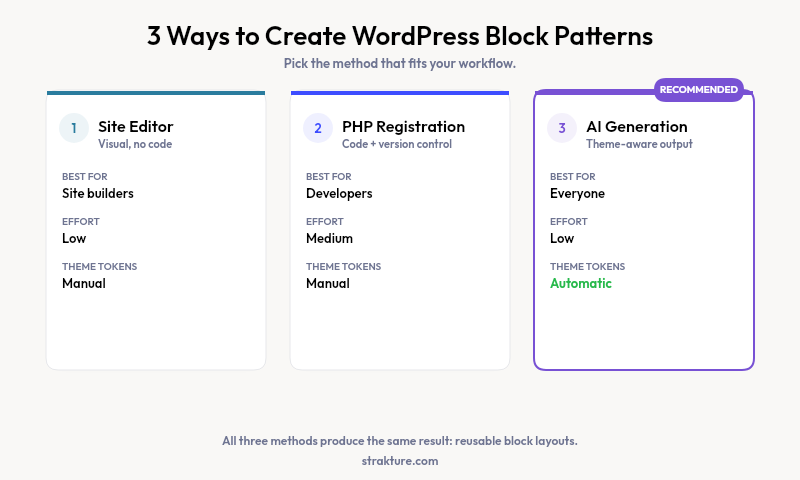
The Site Editor approach suits site builders who prefer visual tools and do not maintain the site in version control. It is quick, requires no PHP knowledge, and works for any block-based theme.
PHP registration suits theme developers, agency developers, and anyone who manages site files with Git. Patterns live in the codebase, ship with the theme, and can be reviewed and tested before deployment.
AI generation suits anyone who wants production-ready patterns that already use the correct theme design tokens. It is especially useful when you need several patterns quickly or are unfamiliar with the CSS variable structure a particular theme uses. All three methods produce the same end result: reusable block layouts available in the inserter. The difference is workflow, maintenance, and how closely the output matches your existing design system.
Block Pattern Methods: Side-by-Side Comparison
| Criteria | Site Editor (Visual) | PHP Registration (Code) | AI Generation |
|---|---|---|---|
| Skill level | Beginner | Intermediate-Advanced | Beginner |
| Theme awareness | Inherits current theme | Full control via code | Depends on tool |
| Reusable across sites | No (saved per site) | Yes (in theme/plugin) | Yes (exports blocks) |
| Version control | No (database only) | Yes (file-based) | Partial |
| Speed | Minutes per pattern | 30-60 min per pattern | Seconds per pattern |
| Customization depth | Limited to editor UI | Unlimited | Prompt-dependent |
| Best for | Quick one-off layouts | Theme developers, agencies | Rapid prototyping |
What is the difference between a block pattern and a synced pattern?
A block pattern inserts an independent copy of the layout into each page. Editing one instance does not affect others. A synced pattern (previously called a reusable block) shares a single source. Editing the source updates every page where the pattern appears.
Can I register a block pattern without a plugin?
Yes. Add the register_block_pattern() call to your theme’s functions.php file, or place a PHP file with the correct header comment inside your theme’s patterns/ directory. WordPress picks it up automatically from that folder.
Why should I use CSS custom properties instead of hardcoded values?
CSS custom properties reference your theme’s design tokens directly. When the theme updates its color palette or spacing scale, any pattern using those tokens updates automatically. Hardcoded values stay fixed and quickly fall out of sync with the active theme’s styles.
Do block patterns work with classic themes?
The pattern registration API works with any theme that supports the block editor. The Site Editor pattern interface, however, requires a block-based (FSE) theme. Classic themes can still use patterns in the post editor through the inserter panel.

Leave a Reply